How it works
How to convert a picture to a Nintendo DS texture (free tool)
Short answer: to convert a picture to a Nintendo DS texture, open the free DS texture converter, drop your picture in, and choose either "3D texture" or "2D picture". The tool fits it to the DS's own rules (power of two sizes, a palette format the hardware can read, 15-bit color) and shows you what it uses. Then you download the PNG, the palette, or the texture bytes. It runs in your browser, needs no account and uploads nothing.
On this page
What the tool is
The converter is free. You do not make an account, you do not spend gems, and your picture never leaves your computer: the page says "Converted in 9 ms, in your browser. Nothing was uploaded." right under the preview. The only thing that ever sends your picture anywhere is the "Make a game with it" button, and only after you press it.
The converter is the Shiny Gen engine's own C++, the same code the DS cartridge build runs when it imports a picture into a game, compiled to WebAssembly so it runs in a tab. So the bytes you download are the DS baker's own texels, the same ones our DS games use. If you are curious how a DS game gets built from a picture end to end, our guide to making a DS game with AI covers that side.
Step by step
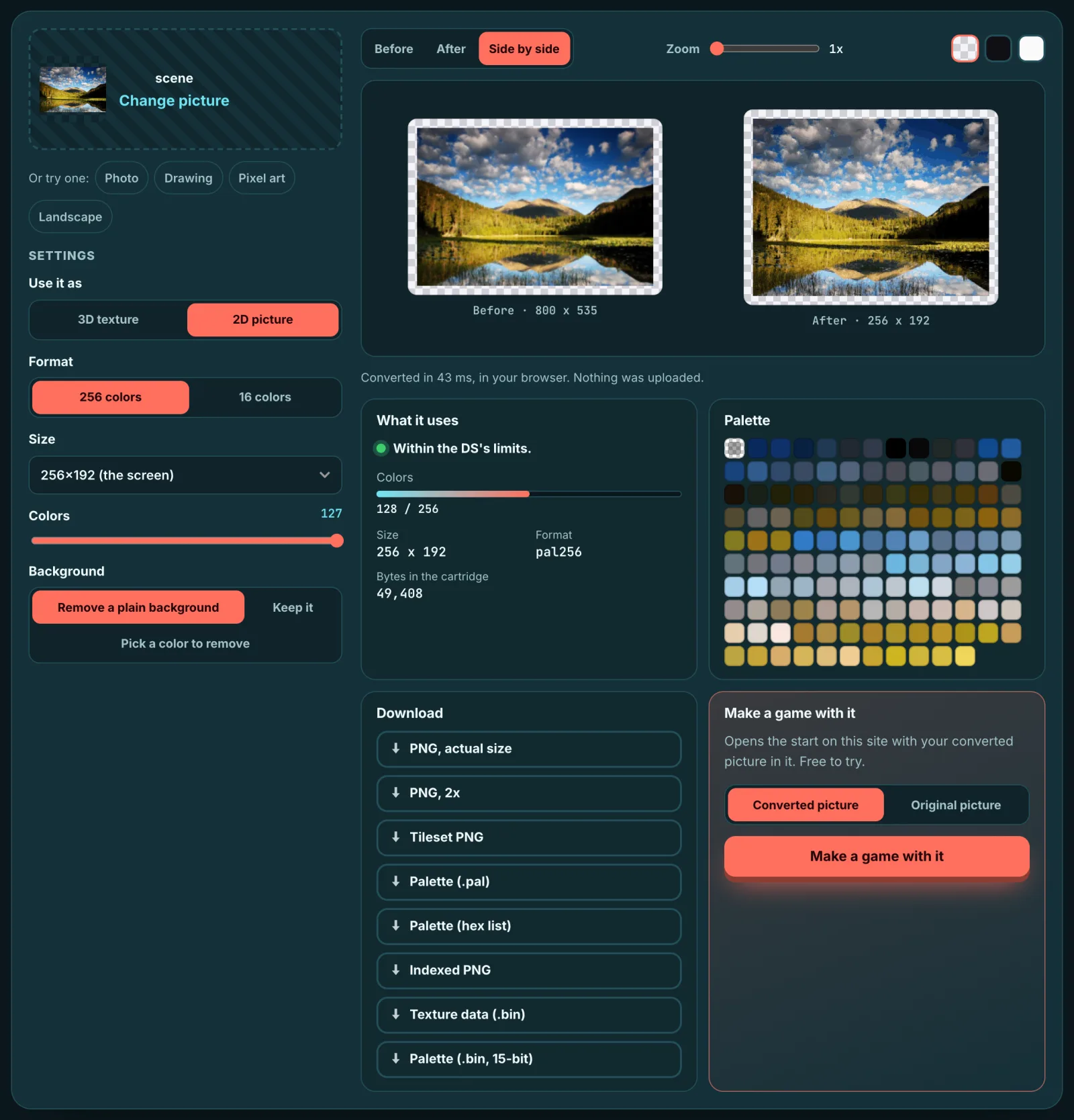
1. Add a picture. Drop one on the page, paste it, or pick a file. Any picture your browser can open works, at any size; very large ones are read at most 2048 pixels a side. If you have nothing handy, the page has four samples: Photo, Drawing, Pixel art and Landscape.
2. Choose how you will use it. The "Use it as" switch has two modes.
- 3D texture is for something you wrap on a model or a sprite in 3D. Sizes are powers of two from 8 to 128 a side (our DS games use up to 128), and the shape can be up to 4:1.
- 2D picture is for a picture on a screen. The sizes are 256x192 (a whole DS screen), 128x128, 64x64 and 256x256, with sides in multiples of 8 up to 256.
3. Pick a format (3D texture). The default, "Best for this picture", chooses for you: 4 or 16 colors when the picture has that few, 256 colors otherwise, and the A3I5 format when the picture has soft, partial transparency. You can also choose any of the DS's formats yourself:
- PAL4, PAL16 and PAL256: 4, 16 or 256 palette colors.
- A3I5: 32 colors with 8 levels of alpha.
- A5I3: 8 colors with 32 levels of alpha.
- DIRECT: 15-bit color with 1-bit alpha, no palette.
- 4X4: compressed, 2 bits a pixel plus a palette index for each 4x4 block.
In 2D picture mode the choice is simpler: 256 colors (the tool uses 1 to 127 and keeps index 0 for transparent) or 16 colors (1 to 15).
4. Decide about the background. "Remove a plain background" cuts out a plain border color with the site's own cut-out; pixel art keeps its frame. "Keep it" leaves the picture whole. "Pick a color to remove" lets you tap the picture and set a tolerance with a slider.
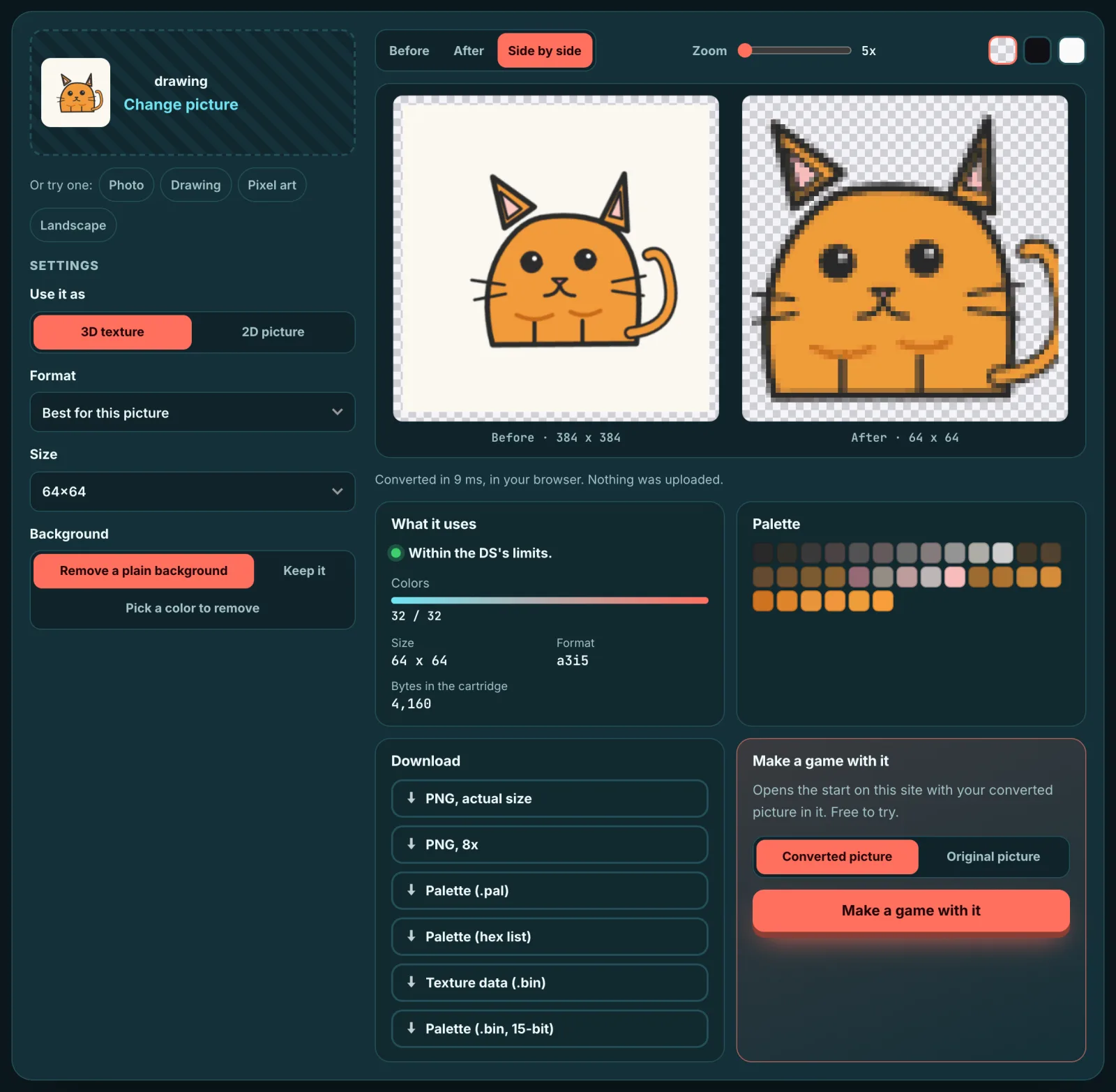
5. Look at the result. The preview has Before, After and Side by side, a zoom slider, and a checkerboard, dark or light backdrop so you can judge the edges. The DS does no texture filtering (it draws nearest neighbor), so the preview is nearest neighbor too: what you see is how the pixels will look.
Read the "What it uses" meters
Under the preview, a green dot and the line "Within the DS's limits." tell you the result fits the hardware. The card then shows a color meter, the size, the format and "Bytes in the cartridge". For the cat above, the meter reads 32 / 32 colors, the format a3i5, size 64 x 64 and 4,160 bytes. The palette card beside it shows every color as a swatch; click one to copy its hex value.
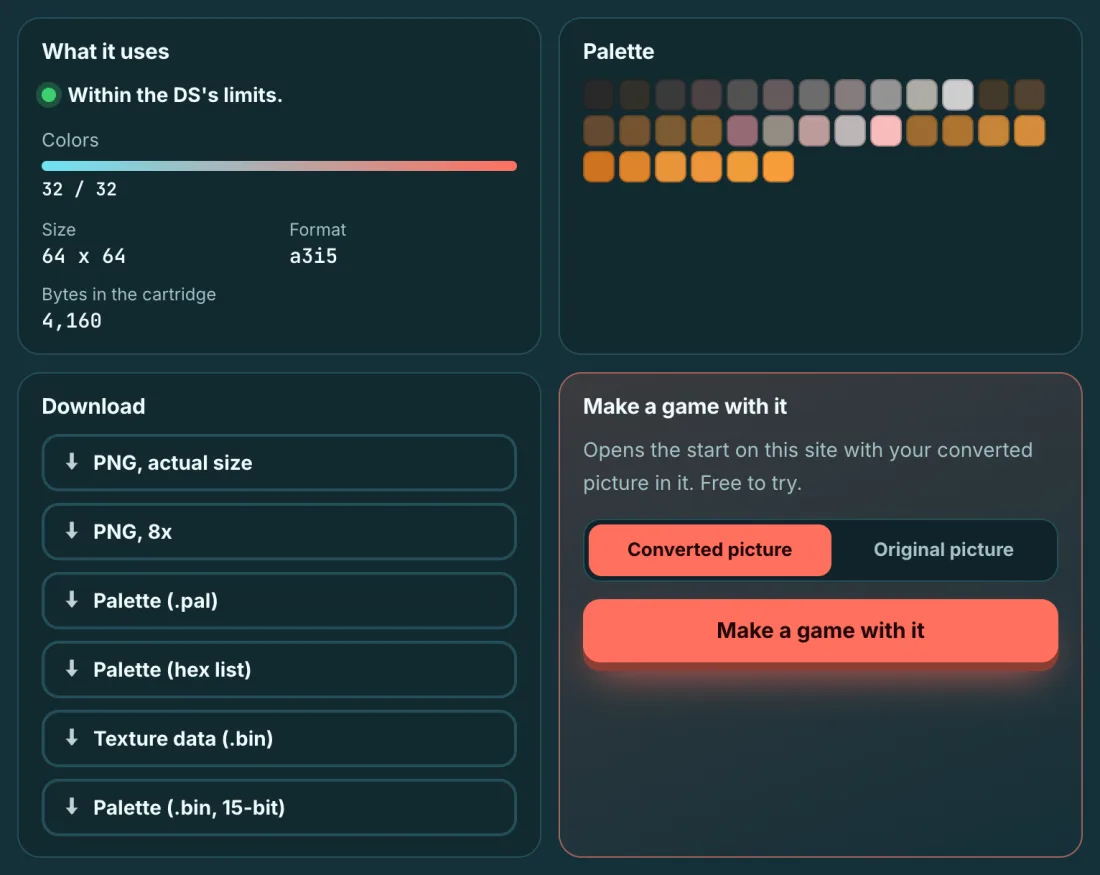
Every setting the tool offers is one the DS can really do. If you pick something impossible, it moves to the nearest legal value and tells you so. If a size cannot hold the picture, it steps down to the next size and says so. The result is also checked: it goes back through the cartridge import unchanged.
Downloads
- PNG, actual size and PNG, scaled (a zoom such as 8x for easy viewing).
- Palette (.pal) and Palette (hex list).
- Indexed PNG for the palette formats.
- Texture data (.bin): the texels exactly as the DS reads them.
- Palette (.bin, 15-bit): little-endian 15-bit words.
- Tileset PNG in 2D picture mode.
The DS rules the tool keeps
| Rule | What the converter does |
|---|---|
| Texture sizes are powers of two | 3D sizes 8, 16, 32, 64, 128 a side, shape up to 4:1 |
| Color is 15-bit | Every color is quantized to 15-bit |
| Palettes are small | 4, 16 or 256 entries; 2D uses 1 to 127 or 1 to 15 with index 0 transparent |
| Alpha comes in fixed steps | A3I5 gives 8 levels, A5I3 gives 32, DIRECT gives 1 bit |
| No filtering | Preview is nearest neighbor, like the hardware |
| Screens are 256x192 | 2D sizes are multiples of 8 up to 256 |
Tips: photos, drawings and pixel art
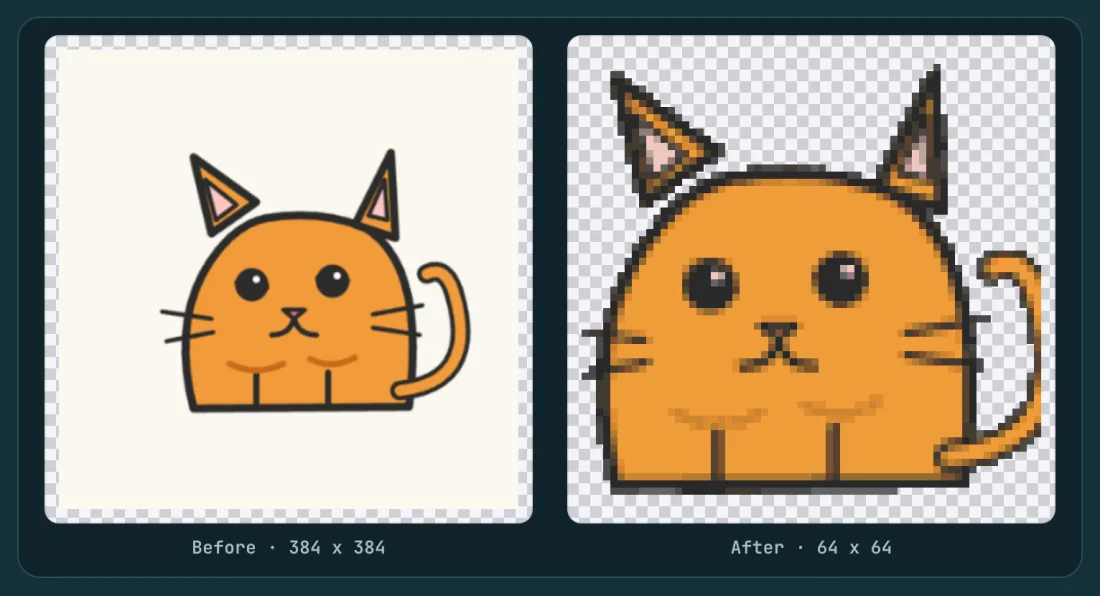
Drawings are the easy case. A flat cartoon has few colors, so the converter can keep it crisp. The cat's 384 x 384 drawing came down to 64 x 64 with its outline, eyes and whiskers intact, and the plain cream background was removed, leaving the checkerboard.
Photos have thousands of colors, so something has to give. A fox photo at 640 x 571 becomes 128 x 128 (the largest 3D size), and you can see the fur turn into fine blocky texture while the eyes and nose stay readable.
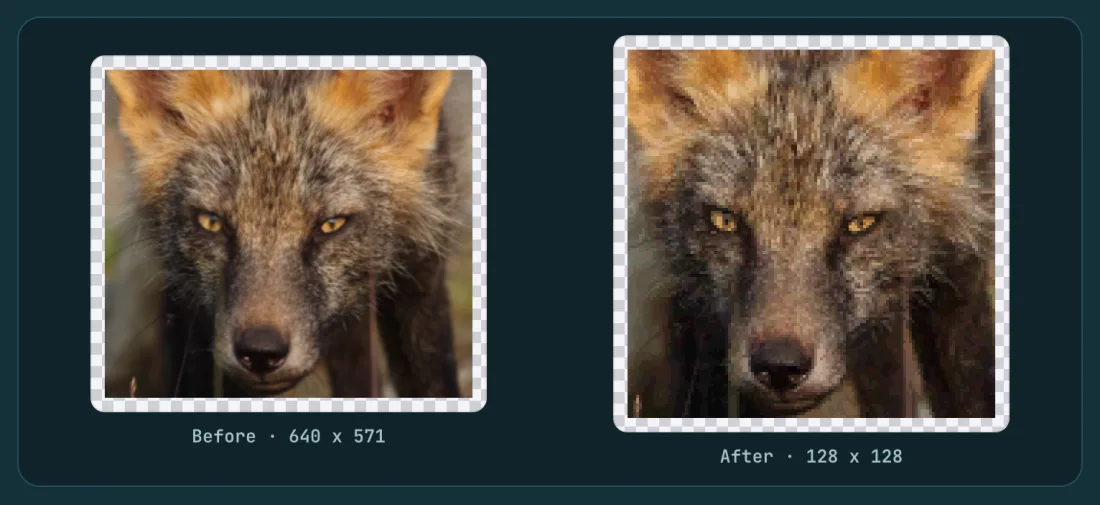
Try more than one format on a photo and watch the meters and the preview. More colors cost more bytes; fewer colors give a cleaner, more graphic look.
Pixel art already lives on a small grid. Use the smallest size that holds it, keep the background if the frame is part of the art, and pick a palette format with enough entries for your colors.
Make a game with it
When the picture looks right, the "Make a game with it" card on the converter sends it to this site's start card. Choose "Converted picture" or "Original picture", then add a few words, say what your picture plays (the hero, the rival, the treasure or the backdrop), and start an AI game making session.
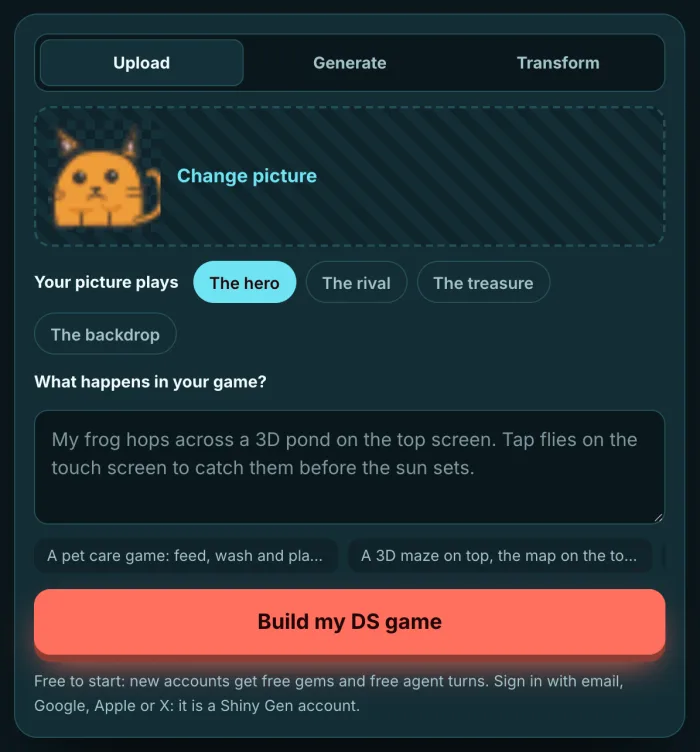
This is a Shiny Gen account on the site, and a new account starts with free gems and free agent turns. You only reach it by pressing the button; the converter itself stays free. If you just want the files, the free DS texture converter is all you need.
FAQ
Is the Nintendo DS texture converter really free?
Yes. There is no account, no gems and no limit on conversions. It runs in your browser and the picture is never uploaded.
Which formats does it support?
For 3D textures: Best for this picture (automatic), PAL4, PAL16, PAL256, A3I5, A5I3, DIRECT and 4X4. For 2D pictures: 256 colors or 16 colors. These are the only formats it offers.
What size should a DS texture be?
In 3D mode, sizes are powers of two from 8 to 128 a side, with a shape up to 4:1. Our DS games use up to 128. In 2D mode, sides are multiples of 8 up to 256, and 256x192 is a whole screen.
Does it match what Shiny Gen's DS games use?
Yes. It is the engine's own converter compiled to run in the browser. In our tests, 172 cases (4 pictures with 43 settings) give byte-identical results to the engine, and 92 of them re-imported through the cartridge import unchanged. Another 1,836 conversions across the extremes of every setting stayed inside the hardware limits.
Can I get the raw texture bytes?
Yes. "Texture data (.bin)" is the texels as the DS reads them, and "Palette (.bin, 15-bit)" is the palette as little-endian 15-bit words.
What if my picture has a background?
Use "Remove a plain background" to cut out a plain border color, "Keep it" to leave the picture whole, or "Pick a color to remove" and tap the color you want gone.
Further reading
Last updated: November 17, 2026